How to Add Users
Easily add users to your RoofQuote PRO™ portal for access and assign them specific roles.
Requirements:
- Roof Quote PRO™ active subscription
- Admin user access
Instructions:
-
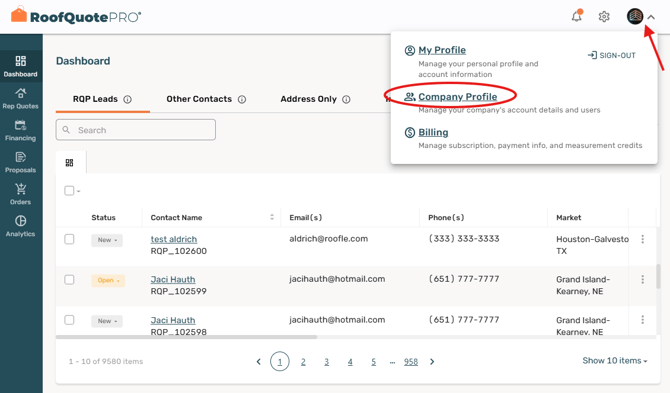
- To start, login to your portal and look for the Profile icon.
- Choose Company Profile from the pop up menu.
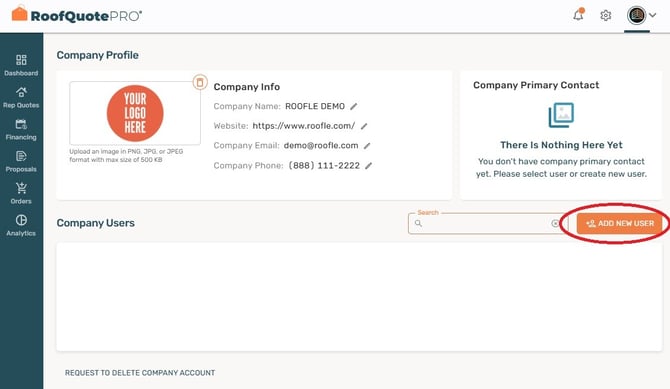
- On the Company Profile page, click the "ADD NEW USER" button
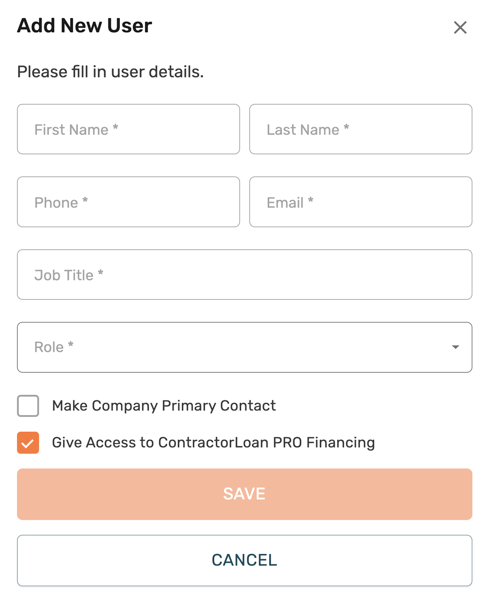
- Complete the form with the new user's details, and then choose the appropriate role for them from the available options.
- Each user role comes with specific access permissions tailored to their responsibilities. Below, you will find a breakdown of the access levels associated with each role.
Admin
- Full access to the platform's features and settings.
- Has the ability to add new users, change the roles of existing users, and assign leads to different users.
- Can reset the password of users.
Manager
- Has the ability to add new users (excepting Admins) and change the roles of existing non-Admin users.
- Can reset the password of users.
- Dashboard (Can see all leads and assign leads to different users )
- Product Settings (Can update product cards and pricing)
- View Quotes and Automation sections of General Settings (Read Only)
- Market Settings
- Rep Quotes
- Orders
- Financing (sending pre-qual invites and requesting payments)
- Proposals
Production Rep
- Dashboard (Can see all leads)
- Product Settings (Can update product cards and pricing)
- View Quotes and Automation sections of General Settings (Read Only)
- Rep Quotes
- Orders
- Financing (sending pre-qual invites and requesting payments)
- Proposals
Sales Rep
- Dashboard (Can only see leads assigned by Admins/Managers or leads self-generated in Rep Quotes)
- Rep Quotes
- Orders
- Financing (sending pre-qual invites and requesting payments)
- Proposals
Developer
- Access to the Widget appearance/branding and Financing appearance sections
in General Settings
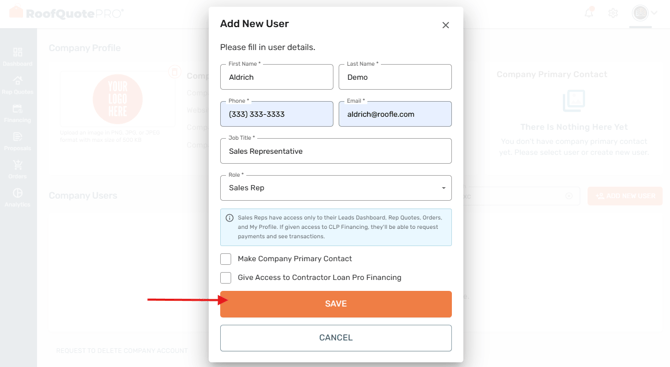
- Developer Settings - Click the "SAVE" button and your new user will receive an email with their login credentials.