
WARNING: changing your WordPress theme may cause your RoofQuotePRO™ installation to be overwritten.
Roofle has tested version 6.8.1 of WordPress
Overview
There are two methods for implementing the RoofQuote PRO on a WordPress: plugin or manually. Both methods allow you to install both versions of the widget (slideout & embedded). There are also notes on how to handle certain cache plugins like WP Rocket, NitroPack, and SiteGround.
Plugin
To download the current version of the official WordPress plugin, click here.
Installing the plugin
- Navigate to the 'Plugins' tab on the left side of your WordPress dashboard
- Select 'Add Plugin'
- At the top of that page, choose 'Upload Plugin' and then upload the roof-quote-pro-widget.zip file
- Next go to the 'Installed Plugins' tab and select 'Activate' (if not already done).
- Navigate to the 'Settings' tab and select 'Roof Quote PRO' from the drop down.
- Enter in your Tool ID which can be found in the Pro Portal dashboard under Developer settings.
- Save Changes
Slideout Configuration (via plugin):
You can either set the slideout widget to be displayed globally across your website or specify it to a few pages. Both are controlled by checkboxes. By deselecting the default 'sitewide' option, you will gain the ability to use the 'specific pages' option.
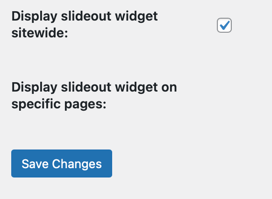
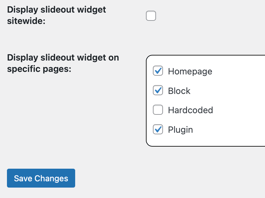
Full page Embedded Configuration (via plugin):
When editing a page, find the block inserter button (generally a square + icon). Scroll down the list of blocks and look out for the Embeds section. There you will find a RoofQuotePRO Embed that you are able to drop into a page directly.
NOTE: The embed will not render on the site editor version of your page. It will only display the widget's name (RoofQuotePRO Embedded Widget). You will need to save & navigate to your website to view the entire widget.
Manual
Slideout Install (Globally):
- Navigate to: Tools -> Theme File Editor -> functions.php
- Add the following code snippet to the bottom of the functions.php file:
// Begin: Include Roof Quote PRO™ script in global <head> element

function include_roof_quote_pro(){

  ?>

    <script

      async

      src="https://app.roofle.com/roof-quote-pro-widget.js?id=XXX-YOUR-TOOL-ID-HERE"

      onLoad="console.log('Loaded Roof Quote PRO™')"

    ></script>

  <?php

};

add_action('wp_head', 'include_roof_quote_pro');

// End: Include Roof Quote PRO™
Slideout Install (Page Specific):
- Navigate to: Tools -> Theme File Editor -> functions.php
- Add the following code snippet to the bottom of the functions.php file:
// Begin: Include Roof Quote PRO™ script on specific page <head> elements

function include_roof_quote_pro_on_specific_pages(){

  if( is_page( array( 'XXX-SAMPLE-PAGE', 'XXX-SECOND-PAGE' ) ) ){

    ?>

      <script

        async

        src="https://app.roofle.com/roof-quote-pro-widget.js?id=XXX-YOUR-TOOL-ID-HERE"

        onLoad="console.log('Loaded Roof Quote PRO™')"

      ></script>

    <?php

  }

};

add_action('wp_head', 'include_roof_quote_pro_on_specific_pages');

// End: Include Roof Quote PRO™
Full Page Embedded Install:
- Navigate to Pages > All Pages
- Click Edit underneath the desired Page
- Click the + Icon in the top left
- Add a Custom HTML block to the page
- Paste in your embedded script tag in that block
<script src="https://app.roofle.com/roof-quote-pro-embedded-widget.js?id=XXX-YOUR-TOOL-ID-HERE" async></script>
- Save changes.
WP Rocket Plugin
NOTE: There is a known issue that WP Rocket rewrites the embed code, causing it to not be able to load correctly. Follow the steps below to get around this issue.
- Login to WordPress admin
- Under Settings, select WP Rocket
- Next select File Optimization under WP Rocket's settings
- Scroll down to the JavaScript Files section
- Enter the following script names into Excluded Javascript Files area
roof-quote-pro-widget.js
roof-quote-pro-embedded-widget.js - Save changes.

Nitro Pack Plugin
NOTE: There is a known issue that Nitro Pack rewrites the embed code, causing it to not be able to load correctly. Follow the steps below to get around this issue.
- Login to WordPress admin
- Within your Nitro Pack settings, go to the Excluded Resources section
- Enter the following script names into that area
roof-quote-pro-widget.js
roof-quote-pro-embedded-widget.js - Save changes.
- For more information, please refer to Nitropack's docs.
SiteGround Plugin
There is a known issue that SiteGround rewrites the embed code, causing it to not be able to load correctly. Follow the steps below to get around this issue.
- Login to WordPress admin
- Within your SiteGround settings, go to the Excluded Lists section
- Enter the following script names into that area
roof-quote-pro-widget.js
roof-quote-pro-embedded-widget.js - Save changes.
- For more information, please refer to SiteGround's docs.
External Script Workaround
Beta fix: Go to your Theme Editor and select the functions.php file, plug in the following code at the bottom of the .php file, and save it. The optimizer will ignore the widget and it should work normally at that point.
add_filter( 'sgo_javascript_combine_excluded_external_paths', 'js_combine_exclude_external_script' );

function js_combine_exclude_external_script( $exclude_list ) {

    $exclude_list[] = 'app.roofle.com';

    $exclude_list[] = 'https://app.roofle.com/roof-quote-pro-embedded-widget.js';

$exclude_list[] = 'https://app.roofle.com/roof-quote-pro-widget.js';

    return $exclude_list;

}
