
NOTE: To ensure that the widget loads on both the WIX site editor and your website, add the following domains to the whitelist on your Pro Portal dashboard under the 'Tool Scripts' tab:
filesusr.com
editor.wix.com
Slideout Install
Globally
- Go to Site -> My Dashboard
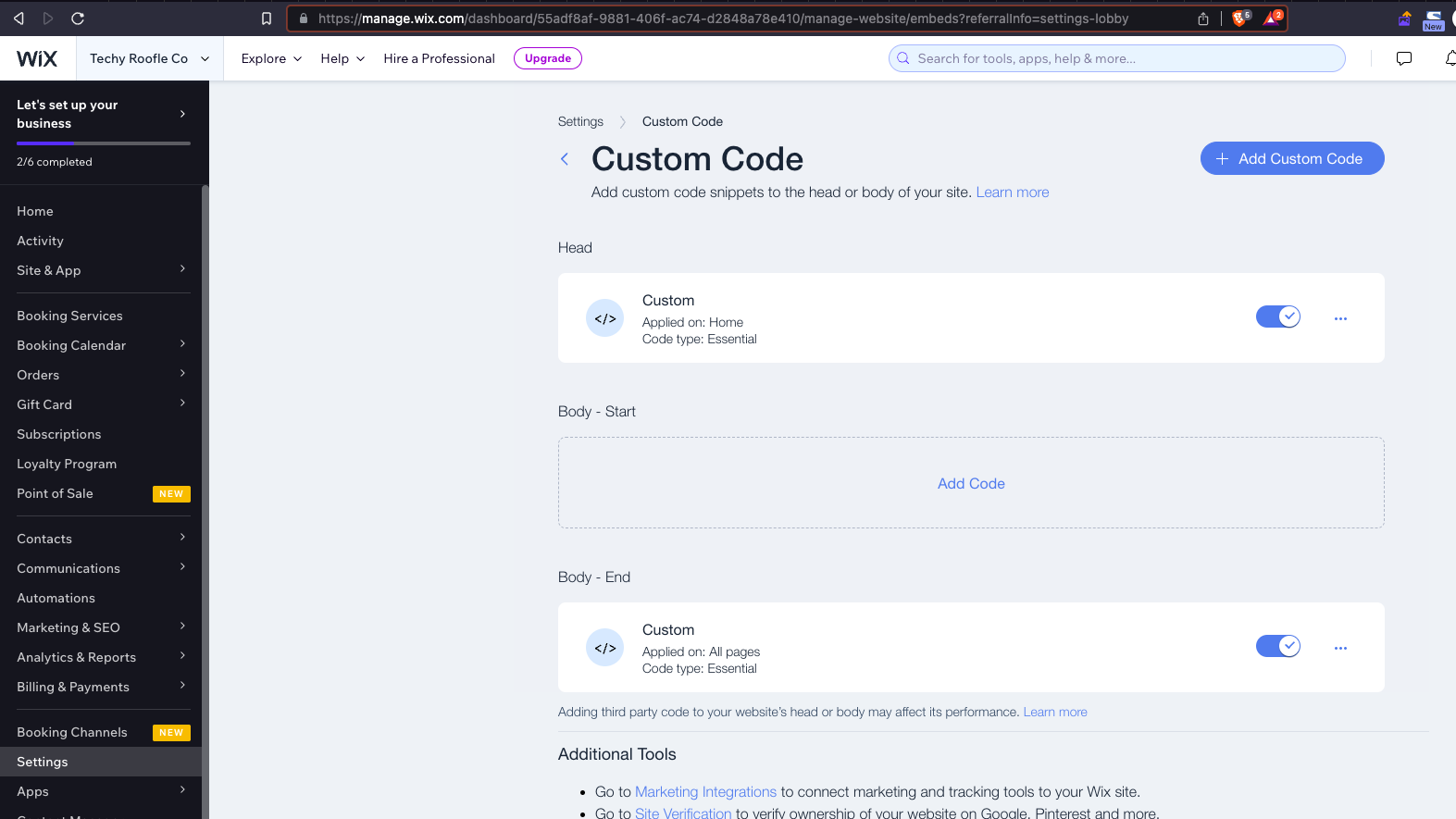
- Go to Settings -> Custom Code -> + Add Custom Code
- Paste the code snippet in and give the code a name
- Add the code to all pages
- Choose “Place Code in: Head”
For a detailed example of this process, please refer to this article on Wix's support page.
Page Specific
- Repeat steps 1-3 from above.
- Instead of adding to all pages, select the specific pages you'd like the code to be applied to.
- Choose “Place Code in: Head”
Full Page Embedded Install
HEADS UP! Wix websites use fixed-height sections which stiffen the containers. This causes issues as our widget expands and contracts as its used. To combat this problem, we recommend using a section height of 1040 px on desktop and 540 px on mobile.
- Select Add Section
- Select Blank Section
- Select and highlight the new Section
- Select Quick Edit -> Add Elements -> Embed Code -> Embed HTML
- Paste in the standard <script> tag as well as the <div> tag below.
<script src="https://app.roofle.com/roof-quote-pro-embedded-widget.js?id=XXX-YOUR-TOOL-ID-HERE" async></script>
<div id="roof-quote-pro-embedded"></div>
<style> body { margin: 0 } </style>
7. Click Update
8. Use the drag handles to drag the HTML to be the full width and height of its parent Section.
a. On mobile view, leave some gaps between the left and right sides of the HTML block and the section border so that users are able to scroll up/down accordingly.