
Requirements
- Roof Quote PRO™ active subscription
- Rooflink account
- Admin user access
Overview
Automatically send your RoofQuote PRO™ lead data to Rooflink account through this direct integration.
Instructions
- Login to your Rooflink account
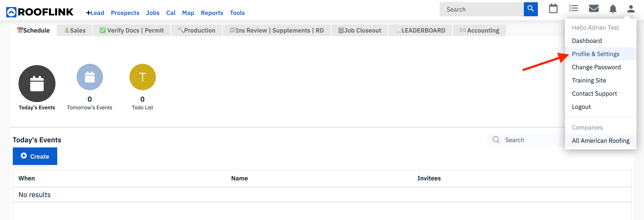
- Navigate to the user icon (top right of screen) and select Profile & Settings from the dropdown menu
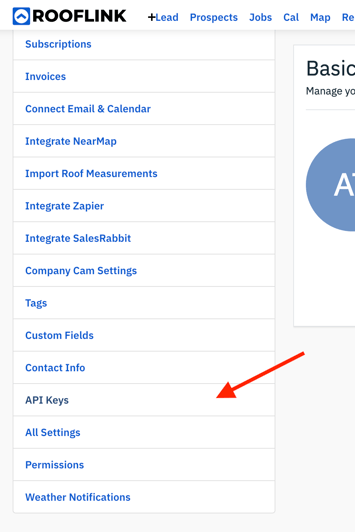
- On the Settings page, under the Company Settings section and select API Keys
- Click on the + Create API Key button in the upper right corner and click create on the popup
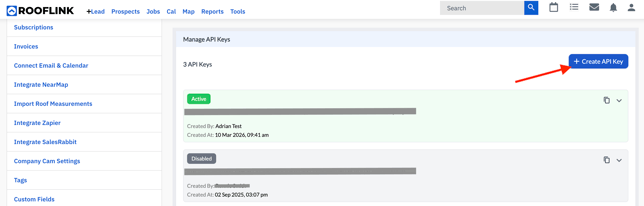
- Use the Copy button next to your newly created API Key

- Next, login to your RoofQuote PRO portal
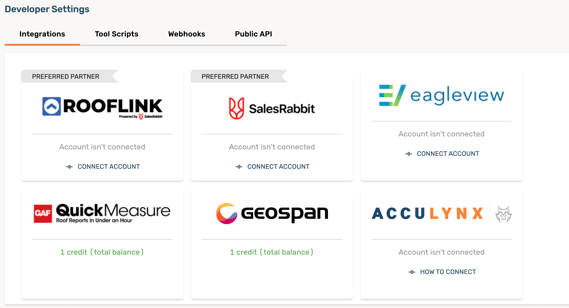
- Find the Settings (gear) icon and select Developer from the menu
- On the Rooflink integration tile and click 'Connect Account'
- In the Rooflink pop up menu, paste in the copied API token/key.
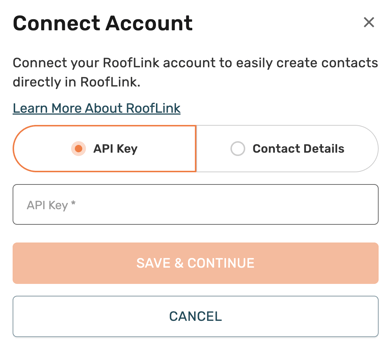
- Click Save & Continue
- On the Contact Details tab, specify any applicable fields to fit your contact workflow. You have the option to edit the following:
- Lead Source Name
- Lead Status Name
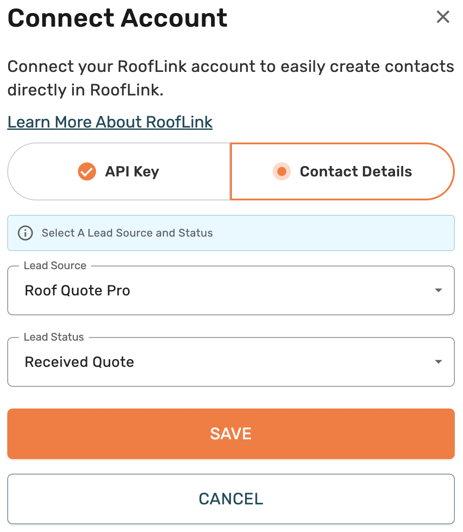
- Once satisfied, click Save
- Complete! All RoofQuote PRO lead data will be sent to Rooflink moving forward.