
NOTE: Hubspot provides multiple locations to include the HTML Javascript tag in the <head> section of your site's ecosystem. It can be placed within the templates or on an individual page.
Slide-Out Install (Templates)
- Log in to HubSpot and navigate to Content > Design Manager.
- In the finder panel, locate the template you want to update.
- In the content editor, click Settings in the top right, then select Advanced.
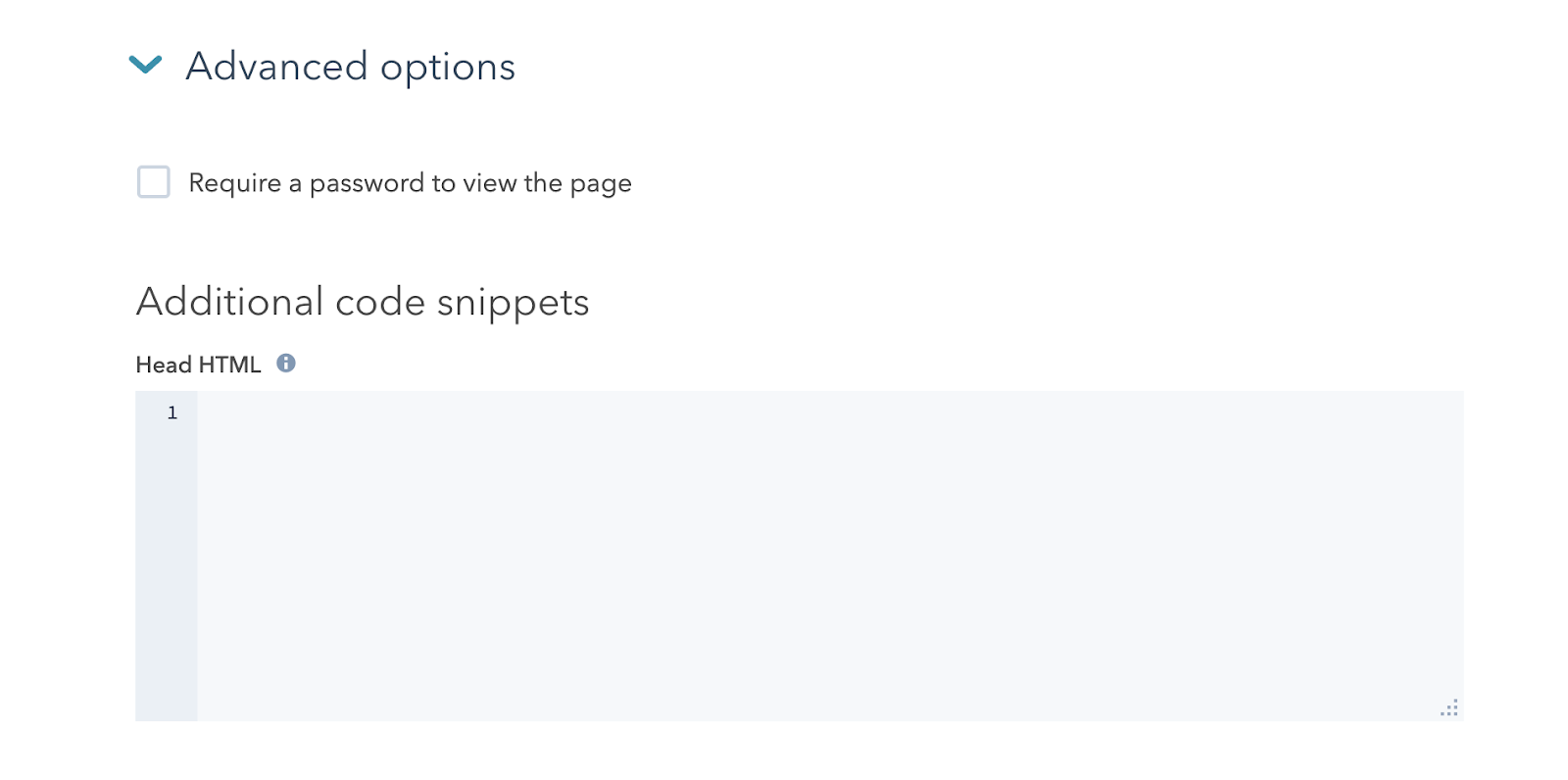
- In the Additional code snippets section, paste your script tag into the Head HTML field.
- Click Publish Changes to apply.
HEADS UP! If you are using a marketplace or system template, direct editing may be disabled. In that case, you will need to clone the template or set up a child theme before making changes.
Slide-out Install (Specific Page)
- Log in to HubSpot and navigate to Content > Website Pages or Content > Landing Pages, depending on where your page lives.
- Click the name of the page you want to update.
- In the content editor, click Settings in the top right, then select Advanced.
- In the Additional code snippets section, paste your script tag into the Head HTML field.
- Click Publish or Update to take your changes live.
Embedded Install
- Log in to HubSpot and navigate to Content > Website Pages or Content > Landing Pages, depending on where your page lives.
- Click the name of the page you want to update, then click Edit.
- In the content editor, click the + icon to add a new module in the location where you want the widget to appear.
- In the search bar, type "HTML" and select it from the results.
- Paste your embed script into the HTML field of the module.
- Click Publish or Update to take your changes live.