Requirements
Overview
The GeoSpan integration on RoofQuote PRO comes ready right of the box. This way you can immediately start ordering high-accuracy measurement reports without leaving your RoofQuote PRO portal. Reports can be triggered manually by your team, or automatically when a homeowner requests a final proposal via your instant quote tool.
HEADS UP! The GeoSpan credits you use in RoofQuote PRO are distinct from any external GeoSpan account you might already have.
There are two types of GeoSpan reports you can request: gPro XPress & gPro. The differences between the two are laid out in the table below.
| Feature | gPro XPress | gPro |
| Credits | 1 Credit | 2 Credits |
| Accuracy | High precision | 99% accurate |
| Turnaround Time | Under 3 hours | Under 6 hours |
| Measurements Include: | Total area, predominant pitch, facet count, eaves, rakes, ridges, hips, valleys, step flashing, flashing, drip edge, start, ice & water | Same measurements as XPress |
| ✅ | ✅ | |
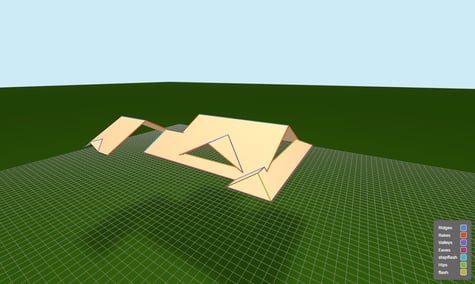
| 3D Model | ❌ | ✅ |
| Download Formats | .pdf, .docx | .pdf, .docx, .xml**, .dxf, .geoJSON, .esx |
| **(Symbility & Verisk) |
NOTE: Measurement credits are required before ordering reports. See How to Purchase Measurement Credits to get started.
Table of Contents
Ordering Reports Manually
There are three places where you can order reports manually
-
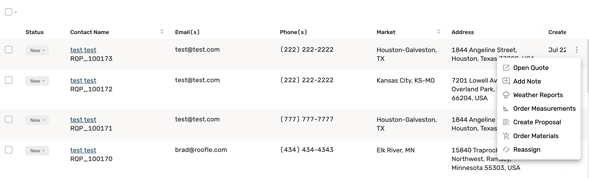
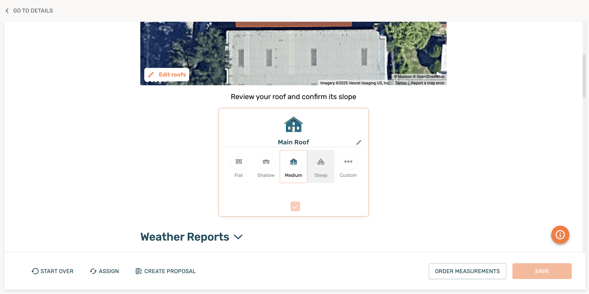
On your dashboard, click the three dots on the right for the lead you want to order a report, and click Order Measurement
-
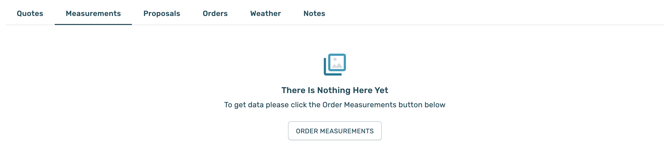
Click on a specific lead on your dashboard to pull up the lead details screen, then click on the Measurements tab. Once there, click Order Measurements.
-
In Rep Quotes, if you’ve created a new lead or opened a quote from an existing lead, click the Order Measurements button that appears at the bottom of your screen
-
After clicking Order Measurement, you will see a popup
- Choose your roof report. In this case, GeoSpan gPro or GeoSpan gPro xPress.
- Select the structures you want measured
- Confirm and submit
NOTE: Multifamily and Commercial structures are not currently supported with Geospan gPro, but may be added in the future.
Ordering Reports Automatically
If you prefer to have GeoSpan reports ordered automatically (so you don’t have to manually trigger them every time):
- In your PRO portal, find the Settings or gear icon
- Choose General on the pop up menu
- Once on the General Settings page, choose the Automations tab
- By default, this will take you to the Measurements Order page in the Feature dropdown
-
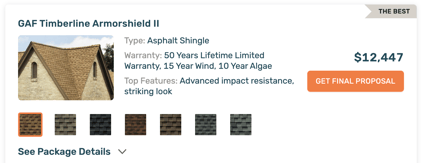
Turn On the toggle for 'Measurement Ordering with Get Final Proposal Button'
- Choose GeoSpan gPro or GeoSpan gPro xPress as the default report
- (Optional) Define a backup report type if your first choice isn’t available
- Click Save Changes
- Turning on automatic orders will change the call-to-action button on your product cards to say “Get Final Proposal”
-
REMINDER! If a homeowner clicks it, a measurement report will automatically be ordered.
-
Order Statuses & Multiple Orders
-
In Progress – Your request is being fulfilled
-
Completed – The measurement report is ready
-
Failed – The order couldn’t be placed (retry)
-
Declined – The order was rejected (you’ll see a reason; you can reorder)
You can place multiple orders per lead. If they’re different report types (e.g. gPro XPress vs gPro), they’ll appear as separate tabs. If the same, you can toggle between versions by date.
Completed Reports
Each completed report is automatically linked to its lead, so your team can quickly access measurements and include them in proposals or final estimates without additional data entry.
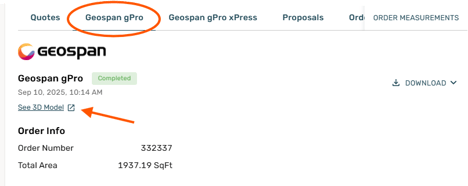
Once a GeoSpan measurement report is delivered, it will appear in the Measurements tab of the lead details page. From here, you can:
-
See Full Report – Open the complete GeoSpan report with all details.
-
Download Files – Export the report in available formats (PDF, DOCX, and for gPro: XML, DXF, GeoJSON, ESX).
-
View 3D Report (gPro only) – Interact with the 3D roof model and use it to build designs directly inside RoofQuote PRO.