
Requirements:
- RoofQuote PRO™ active subscription
- Admin user access
Overview:
The process below details how to to substitute the default map image shown on your RoofQuote PRO to a custom image. This custom image could be the logo for your business, a visual of the multi-step process for using the tool and beyond.
Instructions:
- To start, login to your portal and go to the Settings tab.
- Choose General from the menu. This will take you to the Widget Settings page.
- Select Map Settings from the Feature dropdown menu.
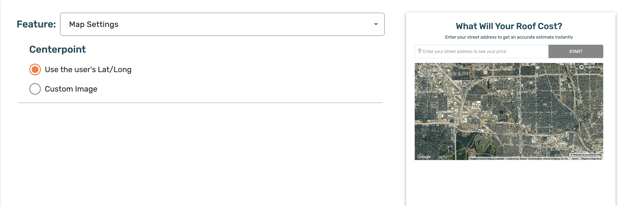
- On the Map Settings page, there is the ability to pivot between the default map setting (Use the user's Lat/Long) or Custom Image
- To upload a custom image, choose that option and then upload the desired file.
- Format: PNG, JPG or JPEG only
- Size: 500KB max
- Dimensions: 1280x720 px (16:9)
- Click Save Changes.
NOTE: Preview the widget after saving the new custom image to ensure there are no design issues.
- Click the Preview Widget button at the bottom of the page and select Embedded Widget or Slideout Tab.
- Once display format is selected, this will generate a useable version of the widget within your RoofQuote PRO portal.
- Alter the size of the browser window to see how the widget responds to different frames (mimicking desktop vs. mobile responsiveness).
- If there are any visual problems, make the necessary edits to your image file.
PRO TIP: Add an image which describes how the widget works. Even though the instant quote tool is already an intuitive user experience, providing a visual which breaks down the steps in the process helps build trust with prospective leads and can be a smaller development lift for your site.
For an example of this type of image, click here.