
Requirements
- Roof Quote PRO™ active subscription
- Admin user access
Overview
RoofQuote PRO allows you to add disclaimers at key points in the quoting process to ensure homeowners see important information. Disclaimers can be added at the product level, within the RQP leads form, or on the Thank You Screen. Each placement gives you control over when and how messaging is presented, helping set clear expectations and maintain transparency with homeowners throughout their experience.
Instructions:
You can add a disclaimer in different areas within RoofQuote PRO.
-
Product Level
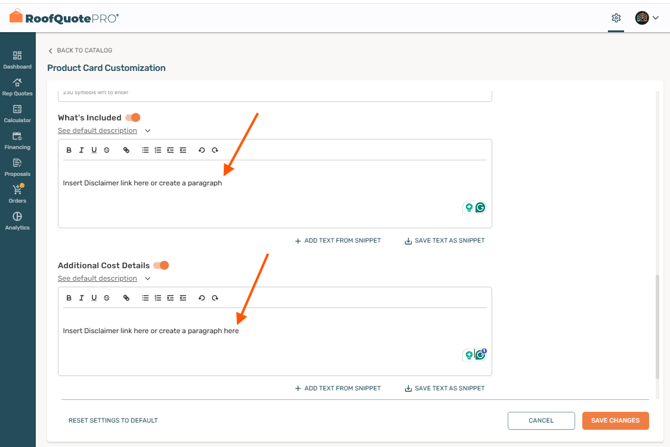
Add a disclaimer directly on specific product cards shown in the quote results.-
Go to Settings > Products > Customize on the product card you want to edit.
-
The What's Included and Additional Cost sections are ideal spots to insert a disclaimer.
-
You can also hyperlink to a page where all your disclaimers are displayed.
-
-
RQP Leads Form
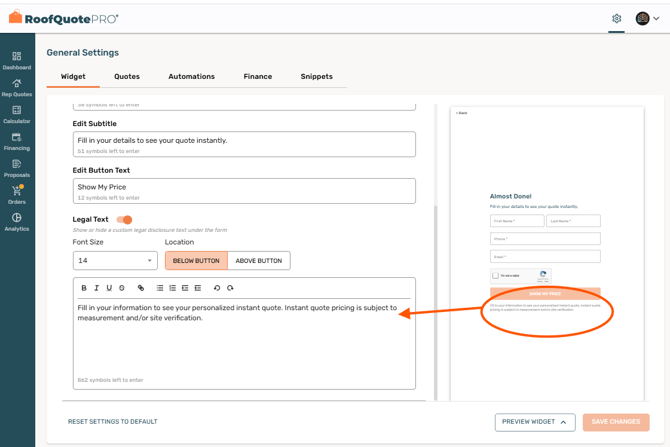
This is the form homeowners complete before receiving their instant quote. Add a disclaimer that appears before they submit their contact information.-
Go to Settings > General > Widget > Dropdown Menu > RQP Leads Form to add your message.
-
-
Thank You Screen
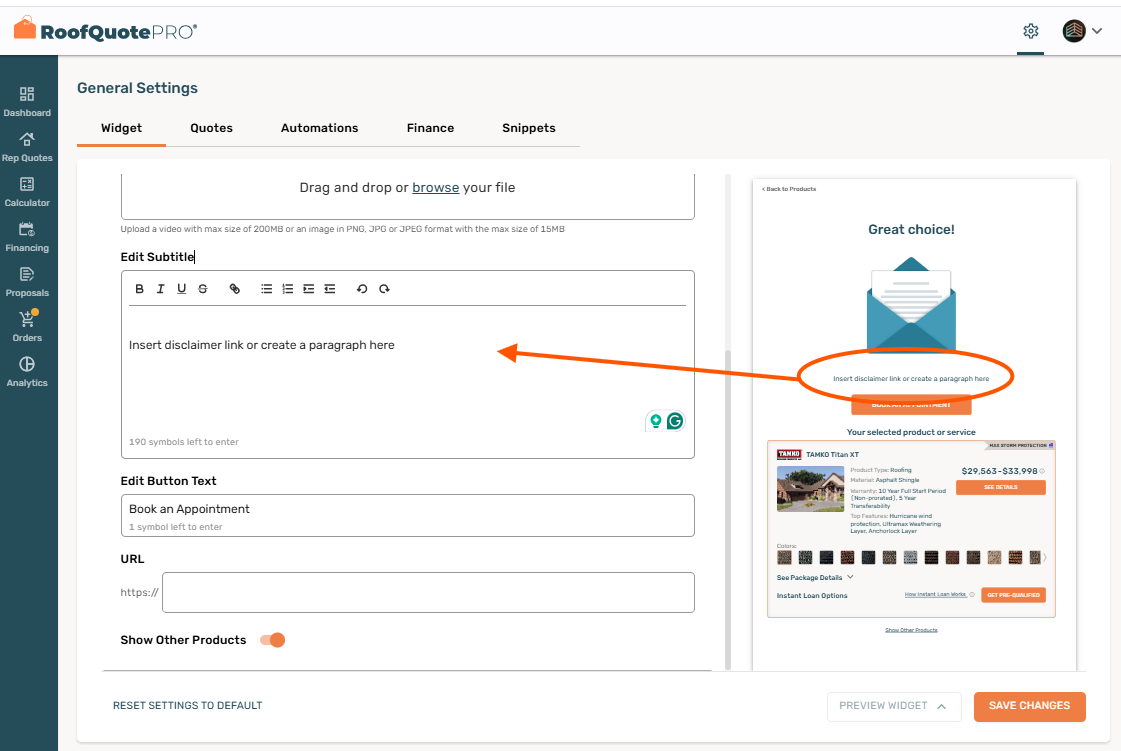
Show a disclaimer after the homeowner requests a quote.-
Go to Settings > General > Widget > Dropdown Menu > Thank You Screen to configure your disclaimer.
-